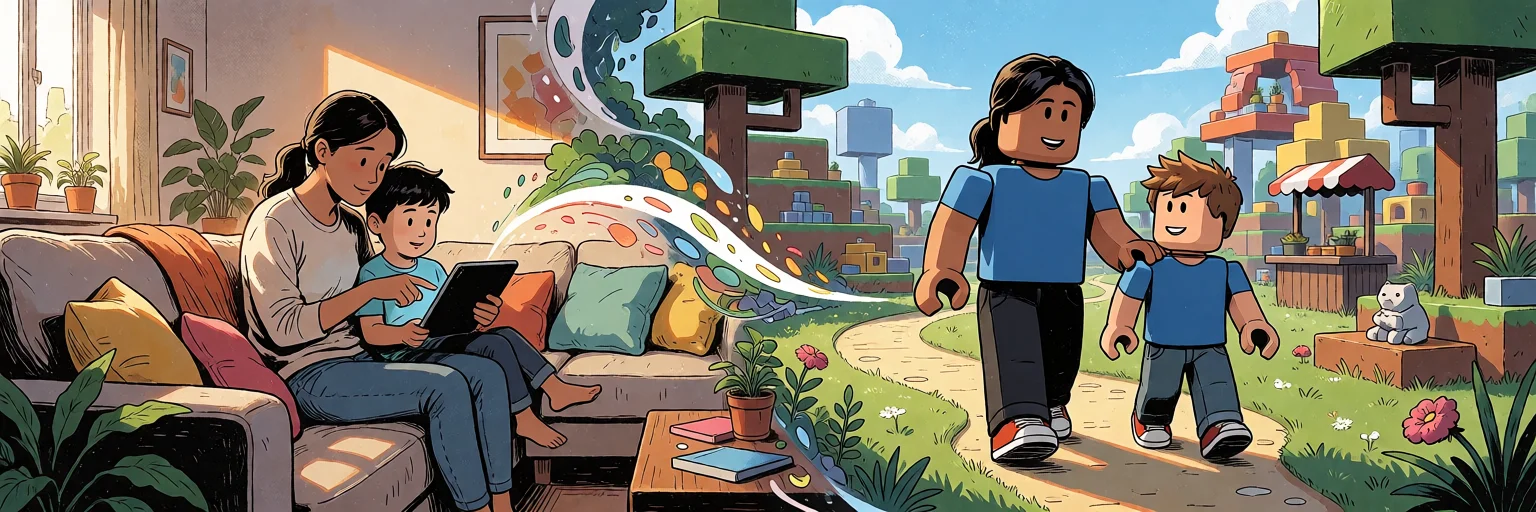
Is Roblox OK for my child? This Roblox parents' guide explains what to look at before your child starts a new game: Roblox's own age rating, how much a game tries to sell, and who your child can talk to. OOF Wiki doesn't label games as safe or unsafe. You know your child best; we give you the facts.
Roblox's age rating: content maturity labels
Every Roblox game can carry a content maturity label set by Roblox: Minimal, Mild, Moderate or Restricted. The label describes what a game may contain, such as violence, crude humour or scary scenes, rather than a precise age. Restricted games are only open to older players whose age Roblox has verified.
In Roblox's parental controls you can choose the highest label your child may play, and block single games you don't want them in. Labels are mostly based on what developers report, so it's worth looking at a game yourself as well. Every game page on OOF Wiki shows the label Roblox gave it.
Spending: Robux, game passes and developer products
Most Roblox games are free to join and earn money inside the game, paid with Robux. They sell two kinds of things:
- Game passes: bought once and kept, like a faster vehicle, an extra slot or a VIP area.
- Developer products: bought again and again, like coins, boosts or extra lives. These are where spending adds up fastest.
A game that sells a lot isn't automatically unfair. What matters is whether paying gives players a real advantage over those who don't, and how hard the game pushes them to buy. That's why OOF Wiki rates every game on a scale from Low Monetization to Monetization Hell, and separately looks at how pay-to-win it is. Read more in Monetization levels explained.
Roblox's parental controls let you set a monthly spending limit on your child's account, so a single game can't empty a gift card in an afternoon.
Chat and other players
Who your child can chat with depends on their age and on Roblox's age check. Younger players have chat switched off or limited by default, and some chat features need a parent's permission. In the parental controls you can switch chat features off, see your child's connections and block accounts. Talk with your child about never sharing personal details and about coming to you when something feels wrong.
A Roblox parents' guide for every game
Every game on OOF Wiki has its own parents' guide with the facts for that game: Roblox's age rating, whether it is free to play, how many things it sells and what our Wikians noticed while playing. It's linked from every game page.
- Browse Roblox games and filter by Roblox age rating, free-to-play and spending.
- See how the OOF Score works: Wikians play the games they review, and scores are never for sale.
- OOF Wiki shows no ads and sells no data. Read our privacy policy for what we store when a young player signs in.
Tips for parents
- Set up Roblox's parental controls together with your child and explain why.
- Play a new game together for ten minutes before saying yes.
- Agree on a Robux budget, and what happens when it's gone.
- Check the game's parents' guide on OOF Wiki for its age rating and spending.
- Turn on spending notifications in Roblox's parental controls, so you hear about every purchase.
- Talk about scams: there is no such thing as free Robux, and nobody from Roblox will ask for a password.
Roblox explains all of its parental controls in its own guide: Roblox for parents. This Roblox parents guide was last checked against Roblox's own help pages in November 2026. OOF Wiki is independent and not affiliated with Roblox.